
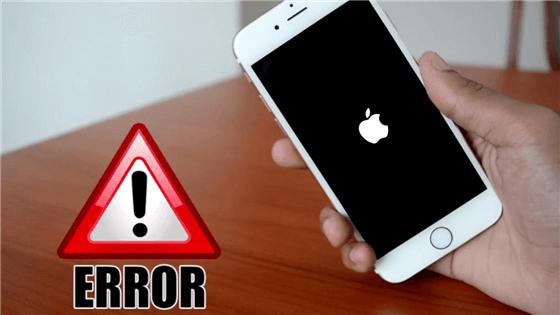
Have you ever powered on your iPhone only to see it endlessly restart? This frustrating loop can make your device unusable.
The good news? Most iPhone boot loops can be fixed. All you need is practical steps.
You can try:
- A force restart,
- Recovery mode,
- Professional repair depending on your model.
Understanding the cause and knowing model-specific steps can save hours of stress. If nothing works, you can always get iPhone repair.
What Causes a Boot Loop?
Boot loops happen when your iPhone cannot fully start iOS. It keeps cycling through the Apple logo, making apps and data inaccessible.
Common causes:
- Failed iOS updates.
- Corrupt or incompatible apps.
- Jailbreak or unauthorized software changes.
- Hardware issues like weak batteries or logic board failures.
Direct Fix: Identify whether it’s a software or hardware problem. Software issues can often be fixed with restarts or Recovery Mode. Hardware issues require professional repair.
Different Ways to Stop Phone Boot Loop on iPhone
Here are the ways you can attempt to fix it.
Force Restart Your iPhone
Force restarting interrupts the loop and may restore normal operation. Steps vary by model.
Force Restart by Model:
| iPhone Model | Force Restart Steps |
| iPhone 8, X, 11, 12, 13, 14, 15 | Press Volume Up → Volume Down → Hold Side button until Apple logo appears |
| iPhone 7, 7 Plus | Hold Volume Down + Power button until Apple logo appears |
| iPhone 6s, SE (1st Gen), 5s | Hold Home + Power button until Apple logo appears |
Tips:
- Only release buttons when Apple logo appears.
- Repeat if necessary before moving to Recovery Mode.
Recovery Mode
Recovery Mode reinstalls iOS without erasing personal data. It’s useful for software-related loops.
Steps by Model:
- iPhone 8, X, 11–15: Connect to PC/Mac → Volume Up → Volume Down → Hold Side button → release at recovery screen.
- iPhone 7, 7 Plus: Connect → Hold Volume Down + Power until recovery screen appears.
- iPhone 6s, SE (1st Gen), 5s: Connect → Hold Home + Power until recovery screen appears.
Instructions:
- Select Update first.
- Only use Restore if Update fails.
- Keep your device connected during the entire process.
Battery and Charging Issues
Unstable power can trigger loops, especially while charging.
Check for issues:
- Device restarts only when plugged in.
- Battery drains quickly despite enough charge.
- Charging screen flickers repeatedly.
Fixes:
- Use Apple-certified chargers and cables.
- Monitor battery health: Settings → Battery → Battery Health.
- Replace batteries if they show instability.
Pro Tip: Old iPhone models like 6–8 and SE benefit most from battery replacements.
DFU Mode and Factory Reset
DFU Mode completely reinstalls iOS, fixing severe software issues… but it erases your data.
DFU Mode by Model:
| iPhone Model | DFU Mode Steps |
| iPhone 8, X, 11–15 | Connect → Volume Up → Volume Down → Hold Side 10 sec → Release Side → continue until iTunes detects device |
| iPhone 7, 7 Plus | Connect → Hold Power + Volume Down 10 sec → Release Power → continue holding Volume Down until detected |
| iPhone 6s, SE (1st Gen), 5s | Connect → Hold Home + Power 10 sec → Release Power → continue holding Home until detected |
Instructions:
- Backup your data before using DFU mode.
- Use only if Force Restart & Recovery Mode fail.
Preventing Future Boot Loops
Preventive care reduces the chance of loops.
Steps:
- Keep iOS updated.
- Avoid jailbreaks or unauthorized tweaks.
- Install apps only from the App Store.
- Backup your iPhone regularly.
- Replace old or weak batteries.
Extra Tip: Routine updates & battery monitoring are critical for older devices like iPhone 6–8 and SE.
When to Seek Professional Repair
Persistent loops may indicate hardware failure.
Signs you need professional help:
- Loops continue after all software fixes.
- Device fails to stay powered on or charge properly.
- Logic board or internal connectors may be damaged.
- Screen remains black or frozen despite restarts.
- Device heats up abnormally during startup.
- iTunes or Finder cannot detect the iPhone even in Recovery/DFU Mode.
- Strange noises or clicking from internal components.
Conclusion
Boot loops are frustrating… but fixable. Start with a force restart tailored to your model. Move to Recovery Mode if needed. Check battery health & use DFU Mode only as a last resort. Preventive steps like iOS updates, avoiding unauthorized tweaks and monitoring battery health can reduce future risk. Persistent loops should be handled via professional iPhone repair.
Following these steps makes your iPhone stay responsive. Quick action protects both your data and your device. It keeps it stable & avoids endless restarts.